Modern Geometric Resume Template
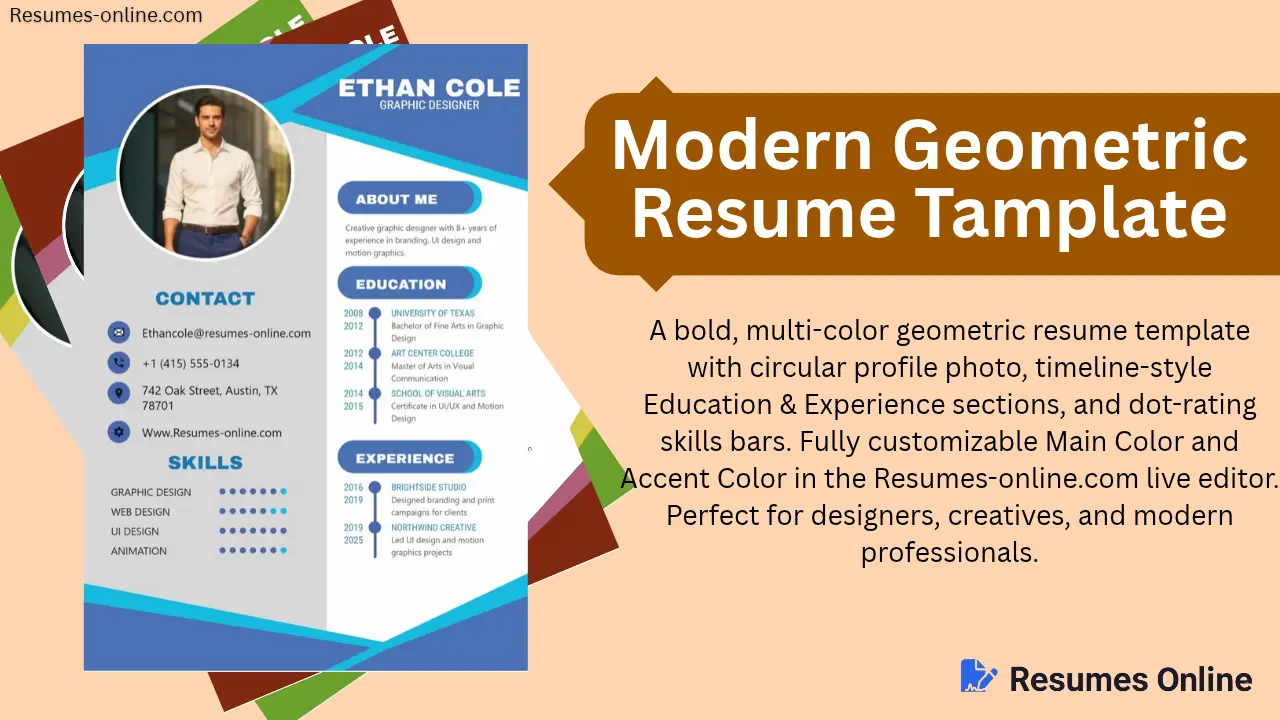
If you are looking for a bold, colourful geometric resume with a circular profile picture, timeline education and work history, and dot ratings for your skills, the Modern Geometric Resume template is a great choice. It features fully customizable main and accent colors and works with the Resumes-online.com live editor, making it ideal for designers, creative workers, and modern professionals.
This contemporary two-column resume template includes live colour customization, adjustable text sizing, and dynamic fields to add, edit, or delete sections for experience, education, skills, and projects. It is ideal for graphic designers, UI/UX designers, managers, and students who want to build a clean, single-page, ATS-friendly resume.
Who should use this template, and for whom is it perfect?
| Profession Type | Why is it suitable? |
|---|---|
| Graphic Designers / UI-UX Designers | The design speaks for itself regarding visual creativity; bold shapes grab a recruiter's attention right away. |
| Creative Professionals (Motion Graphics, Branding, Animation) | Skill dots or bars provide a visual representation of your proficiency—a popular trend in creative fields. |
| Project managers and coordinators | Skills line supports planning, agile, budgeting keywords. |
| Job seekers applying through online portals | Maximum ATS compatibility. |
| Freshers with courses | Certifications section (Google, HubSpot, Meta) adds weight. |
| Marketing specialists (digital, SEO, content, brand) | Layout built around campaigns, results and certifications. |
| Photo-Based Professional Resume | A circular profile photo builds trust and a personal connection. |
Best Use Case: Graphic Designer, UI/UX Designer, Creative Director, Motion Graphics Artist, Content/Brand Designer, or anyone who wants a visually strong, non-traditional resume.
Key Features of Modern Geometric Resume Template
-
1. Bold Multi-Color Geometric Design
- Diagonal and angular shapes in the background give the page a modern and dynamic look.
- Two-tone color scheme (e.g., Blue + Sky Blue, or Green + Yellow)—featuring a main color and an accent/border color.
-
2. Circular Profile Photo
- A large circular photo frame at the top-center instantly grabs the recruiter's attention.
- Offers a blend of professional and personal appeal.
-
3. Timeline-Style Education & Experience
- Both sections feature a vertical timeline design, complete with dots and connecting lines.
- The year range for each entry is clearly displayed on the left, while the institution or company name appears on the right.
- This layout allows the recruiter to easily understand the chronological career journey.
-
4. Visual Dot-Rating for Skills
- Skills are represented by dot bars (filled vs. unfilled circles) rather than plain text.
- For instance, 6 out of 7 filled dots next to "Graphic Design" indicate high proficiency.
- This is more visually engaging than a traditional bulleted list of skills.
-
5. Two-Tone Sidebar & Main Content Split
- Left side (grey background) → Photo, Contact, Skills.
- Right side (white background) → About Me, Education, Experience.
- This clear visual separation keeps the content organized and easy to scan.
How to use a Modern Geometric Resume Template for your resume
(The process of creating the final resume & Live Editor Guide)
As shown in the screenshot, our tool features a "Fill Details" section on the left panel and a live preview on the right—allowing you to see your resume update instantly as you type.
- Step 1: Design Adjustments (Customize First)
- Main Color → Choose your preferred primary color (e.g., Blue, Green, Purple)—this applies to headings, shapes, and icons.
- Border / Accent Color → Secondary color (e.g., Yellow, Sky Blue)—used for highlights and borders.
- Text Size Adjuster → Control the font size for the entire resume at once using the slider.
- Vertical Spacing Adjuster → Adjust the gap between sections so the page looks perfectly filled.
- Step 2: Fill in Personal Details
- Profile Photo → Upload your photo using the "Choose File" button (it will auto-fit into a circular frame).
- Full Name → Enter your name (e.g., "ETHAN COLE").
- Job Title → Enter your designation (e.g., "Graphic Designer").
- About Me → A 2-3 line summary—include your expertise and years of experience.
- Step 3: Contact Section
- Email, Phone, Address, Website—fill these in their respective fields; icons will be applied automatically.
- Step 4: Education (Timeline Entries)
- For each entry: Start Year – End Year, Institution Name, Degree/Course Name.
- Add as many education entries as you like using the "+ Add" button.
- Step 5: Experience (Timeline Entries)
- For each entry: Start Year – End Year, Company Name, Role/Responsibility Description.
- To delete a past job entry, use the trash icon to remove it.
- Step 6: Skills Section
- Enter the skill name (e.g., "UI Design"), and a dot-rating will automatically generate based on the proficiency level you set.
- Step 7: Final Preview & Generate
- Check the final look in the preview on the right—colors, spacing, and everything else will appear in real-time.
- Once satisfied, click the "Generate Resume" button to Generate your final resume.